
Our HubSpot account can be accessed using different accounts:
- Sales seat
- Core Seat
- View-Only Seat
NOTE: If you don't have access to your HubSpot account yet, please talk to Paulo so you can be added.
Depending on the seat assigned to you, you'll have access to different functions in HubSpot:
-
- Sales seat
- This is the seat for you if you need to be able to send sales emails, make phone calls and work on deals and tasks
- Core seat
- This is the seat for you if you don't need to send emails or make phone calls
- View-only seat
- This seat allows users access to all records shared with them but cannot make any changes
- Sales seat
Account Presets & Notifications
Your account access has been set up with a preset; meaning, you have a default homepage, dashboard, and notification settings.
You can override these presets by going to your account settings on the upper-right hand corner of the screen and click "Profile & Preferences"
In the General Tab, set your Profile, Email, Calling, Calendar, Tasks, Security
Then go to the notification tab to set up the notification settings.
Views
Each object on HubSpot has a view; your account will have been set up with a view specific to your role.
You can still change the default view for each object by going to the object (Contacts, Companies, Deals, etc.) and click "Add view" or "All Views"
Remember that dragging a tab to the left most part of the screen will make that view your default view.
Proceed with setting up the view you'd like as a default and mark the corresponding task complete.
Email Integration
If you have a sales seat, you need to connect your Gmail account and calendar to your HubSpot account.
You can connect your personal email in your account settings. Users must have Personal email access to connect an email.
- In your HubSpot account, click the settings settings icon in the main navigation bar.
- In the left sidebar menu, navigate to General.
- Click the Email tab.
- Click Connect personal email.
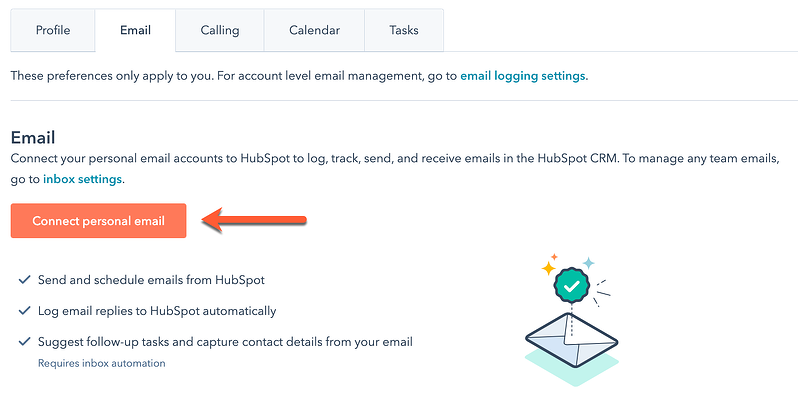
- If you want to turn on inbox automation features when you connect, in the dialog box, select the Turn on inbox automation checkbox.
- Click Connect your inbox.
- In the text field, enter your email address.
-
HubSpot will attempt to recommend which email provider you should connect with. Click Connect to [recommended provider], then continue the steps below for your specific provider to finish connecting your personal email.
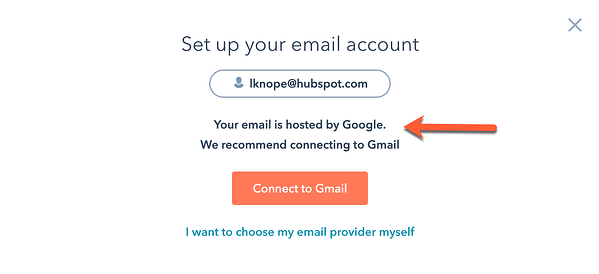
- You'll be prompted to log in to your Gmail account. Enter the email address of the Google account you want to use. If you're already logged into one or more of your Gmail accounts, choose the account you want to connect.
- Review the required permissions, then click Allow.
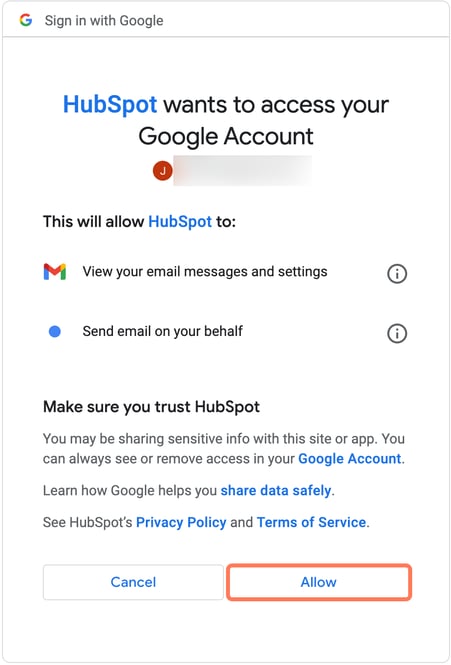
- You'll be redirected back to your settings, and a dialog box will appear to inform you that your Gmail inbox is now connected to HubSpot.
Calling
Currently, we're not using the calling feature on HubSpot, but we will be setting it up at some point this year. Setting up a phone number will be done by a super admin (please contact Paulo or Larissa if you need a HubSpot phone number.)
Once you have a phone number, you need to open the calling tab: