
Objects & Properties overview
Objects: A group of records of the same type
- Contacts
- Companies
- Deals
- Products
- Quotes
Records: A specific object
Properties: Fields where you store information on a record

Examples:
Object: Contact
Record: Maison Azdari (a specific contact)
Property: maison.a@ownerinspections.com.au (the contact's email property)
Object: Deal
Record: Partner - Owner Inspections (a specific deal)
Property: Partner (the deal's Partner Status property)
Deals & Pipelines overviews
- Deals get created whenever a new contact is added to the CRM provided they meet specific criteria.
- We use deals to track how far along a specific contact is from buying our services.
- We also use deals to track our partnership program.
Where to find the deals?
All B2C deals go into the B2C Pipeline
Most partnership deals go to the Partners Pipeline
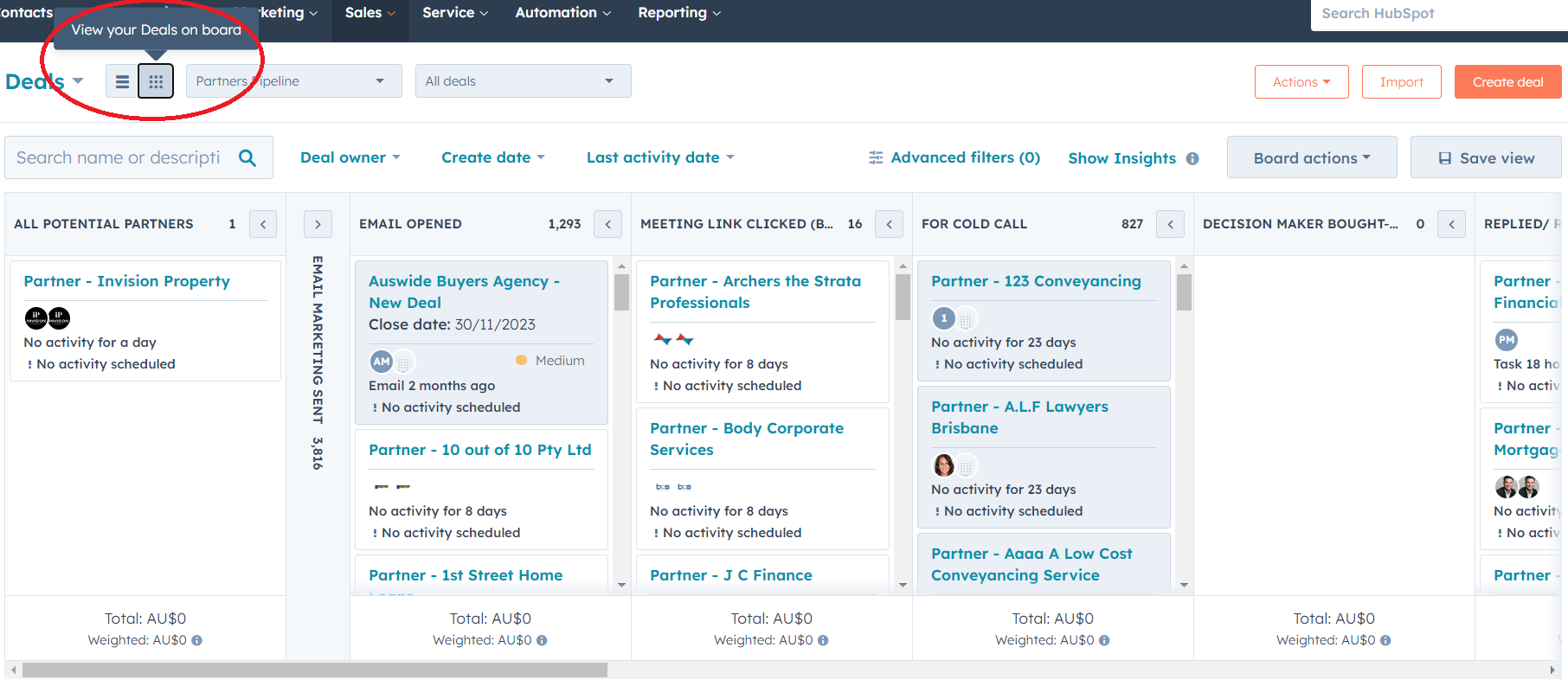
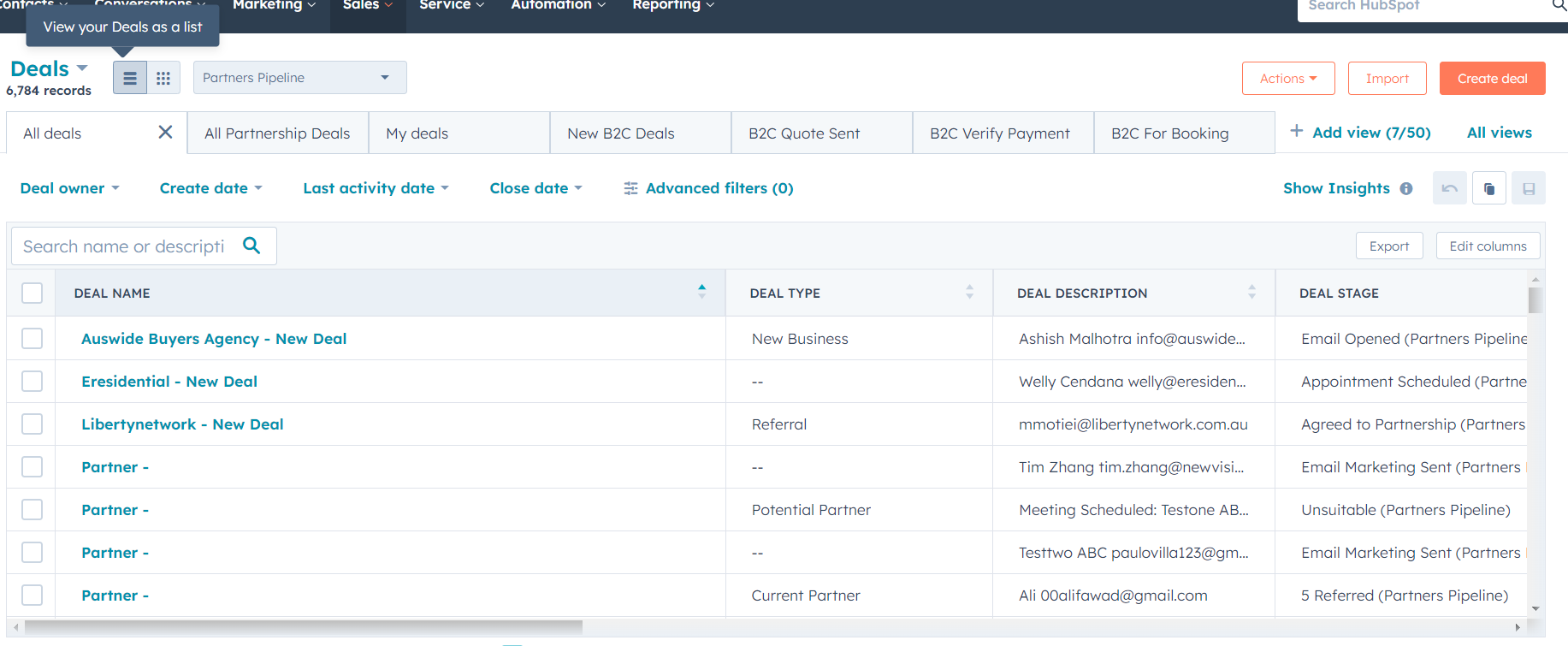
You can view deals in a pipeline as a list or a board. You can also filter views on both list and board views (more on that later).
Board View
List View
Pipeline Automations
Moving a deal from one stage of a pipeline to another triggers specific automations.
Changing a specific deal property also triggers automations.
It's best practice for us to allow the automations to move the deals through the pipeline stage. This means that instead of moving a deal manually to a different stage of the pipeline, we should instead update the deal property to trigger the move.
More about this on Deal Properties
Using filters in pipelines to find a specific deal
When finding a specific deal in a pipeline, there are a few ways to do it:
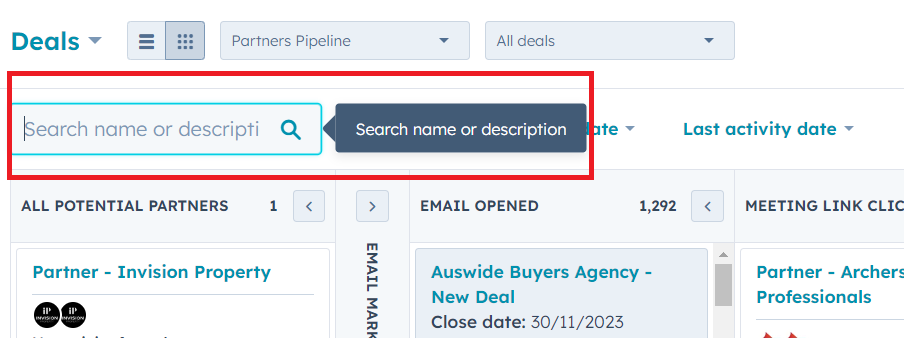
- Use the search box: The search box looks for matching keywords in a deal's name and description
- Advanced filters: To search for a deal associated to a specific contact, use the advanced filters and use the property "Associated Contact"
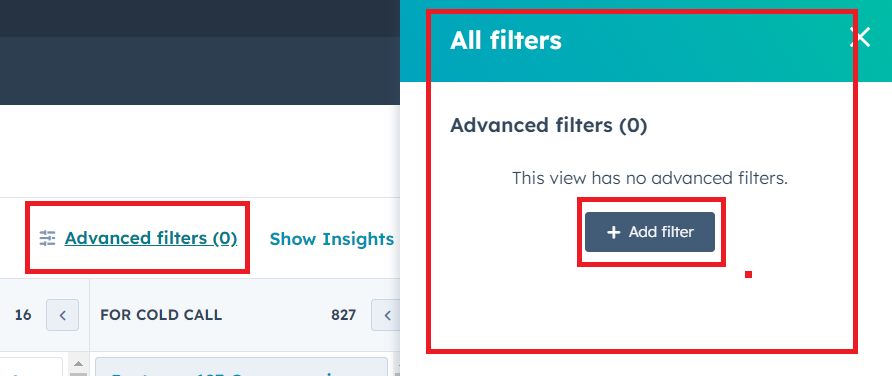
- Useful Advanced Filters for finding deals
- Associated Contact - the contact that's associated to the deal
- Associated Company - the company associated to the deal
- Last activity date - the date an activity (like a meeting, email, call) occurred with the deal.
- Next activity date - the date of an upcoming activity logged on the deal
- Deal Stage - the column where the deal sits in
- Deal Status - properties of the deal that tell us where they are in the buying process
Deal views & deal properties
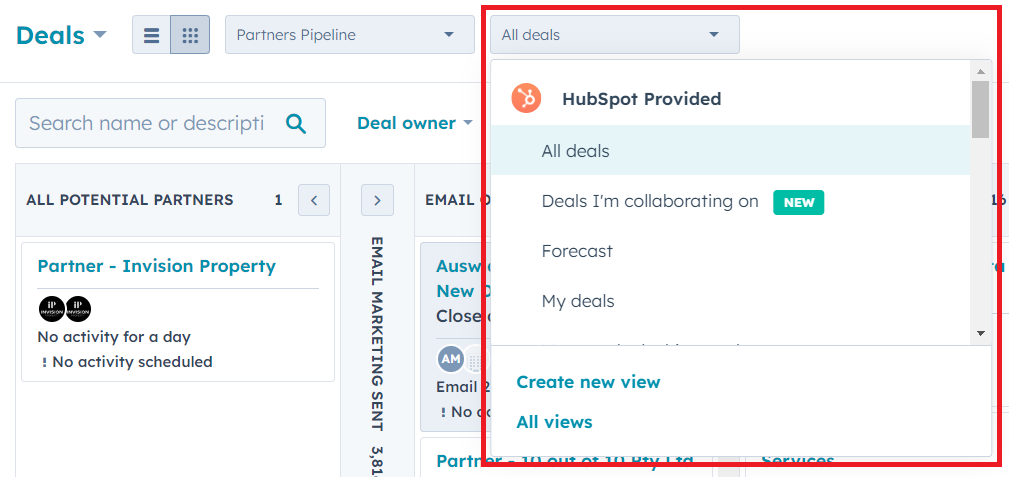
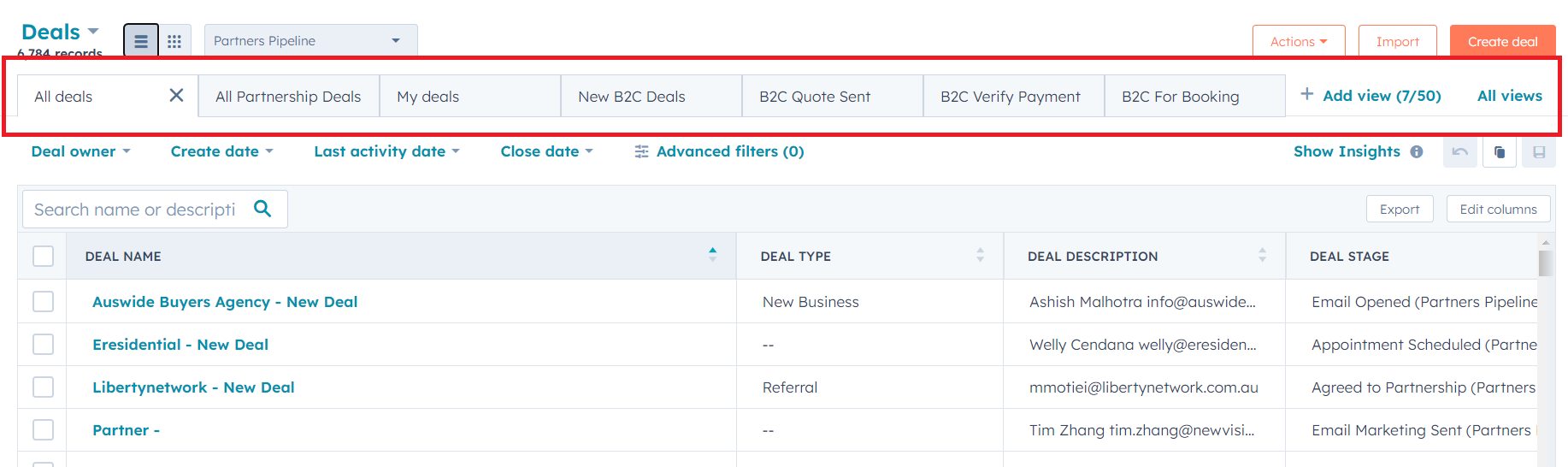
When you go to a specific pipeline, you can use views to automatically filter specific deals based on filter criteria.
If you're on the board view, you can use the drop down to option to select a specific view.
If you're on the list view, the specific views are shown as tabs. The left most tab will be set as your default view.
Tasks
Tasks is where everything you need to do will be listed.
There are three different kinds of tasks:
- Call tasks
- Email tasks
- To-do tasks
Tasks can be created manually by all sales agents if they want to remind themselves about something they need to do.
All deal-related tasks will be automatically generated.
Views
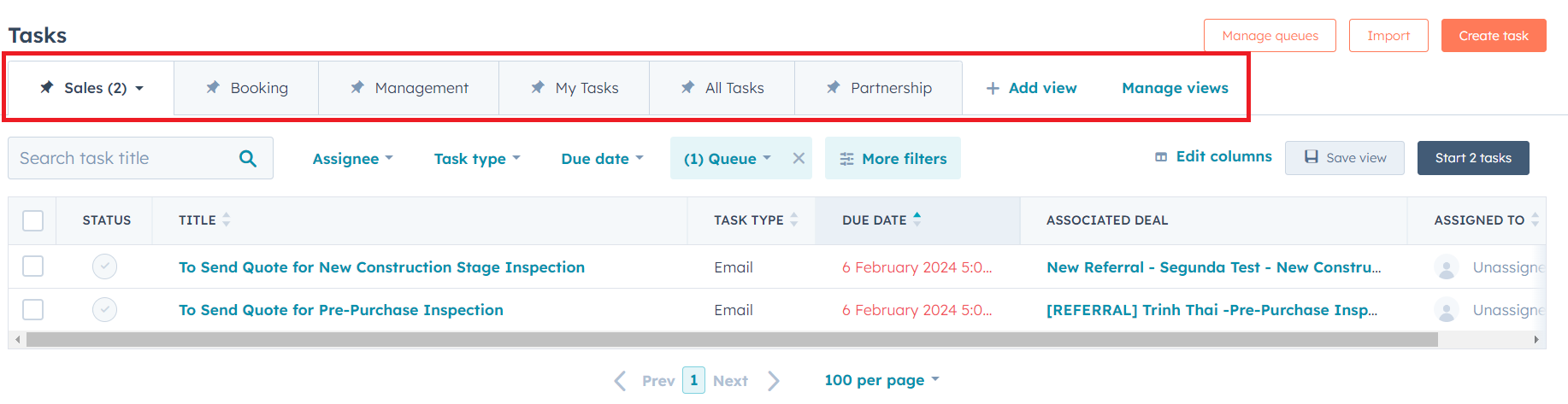
Like other objects, tasks also have different views. The default view set for you is the one for the team you're in.
Task Queues
Tasks assigned to specific teams go to a specific queue. Queues can be used as a filter for views.

Task names
Task names are usually descriptive. It will give you a hint on what the task is about. To work on a task, go to the task view for your team, or go to "all tasks" and filter it by queue.
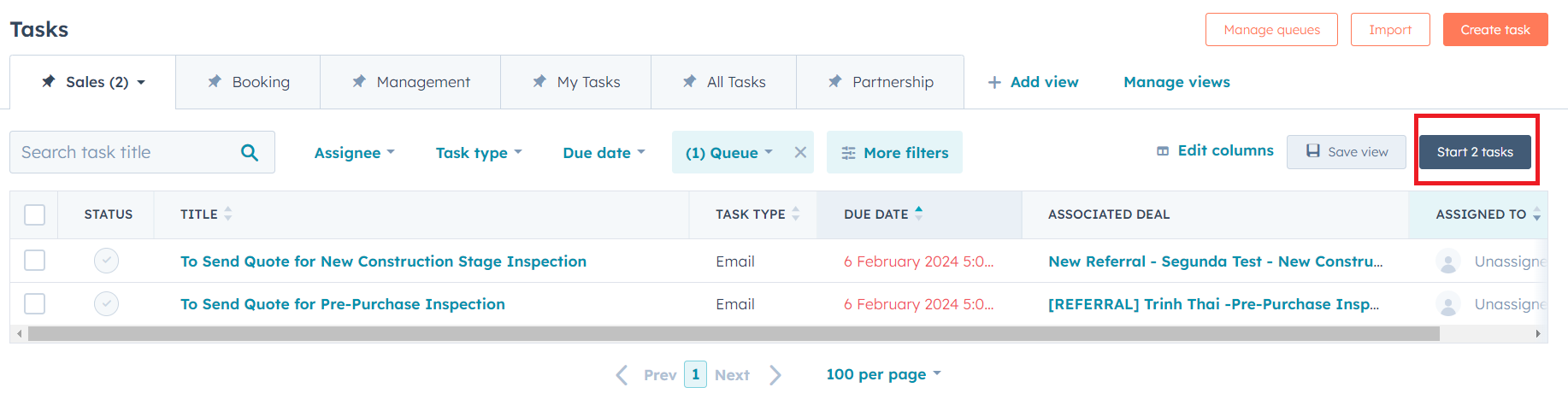
To start working on tasks, click on "Start # tasks" or click on a specific task.
Opening a task will open the object associated to it. If a task is related to a deal, it will open the deal.
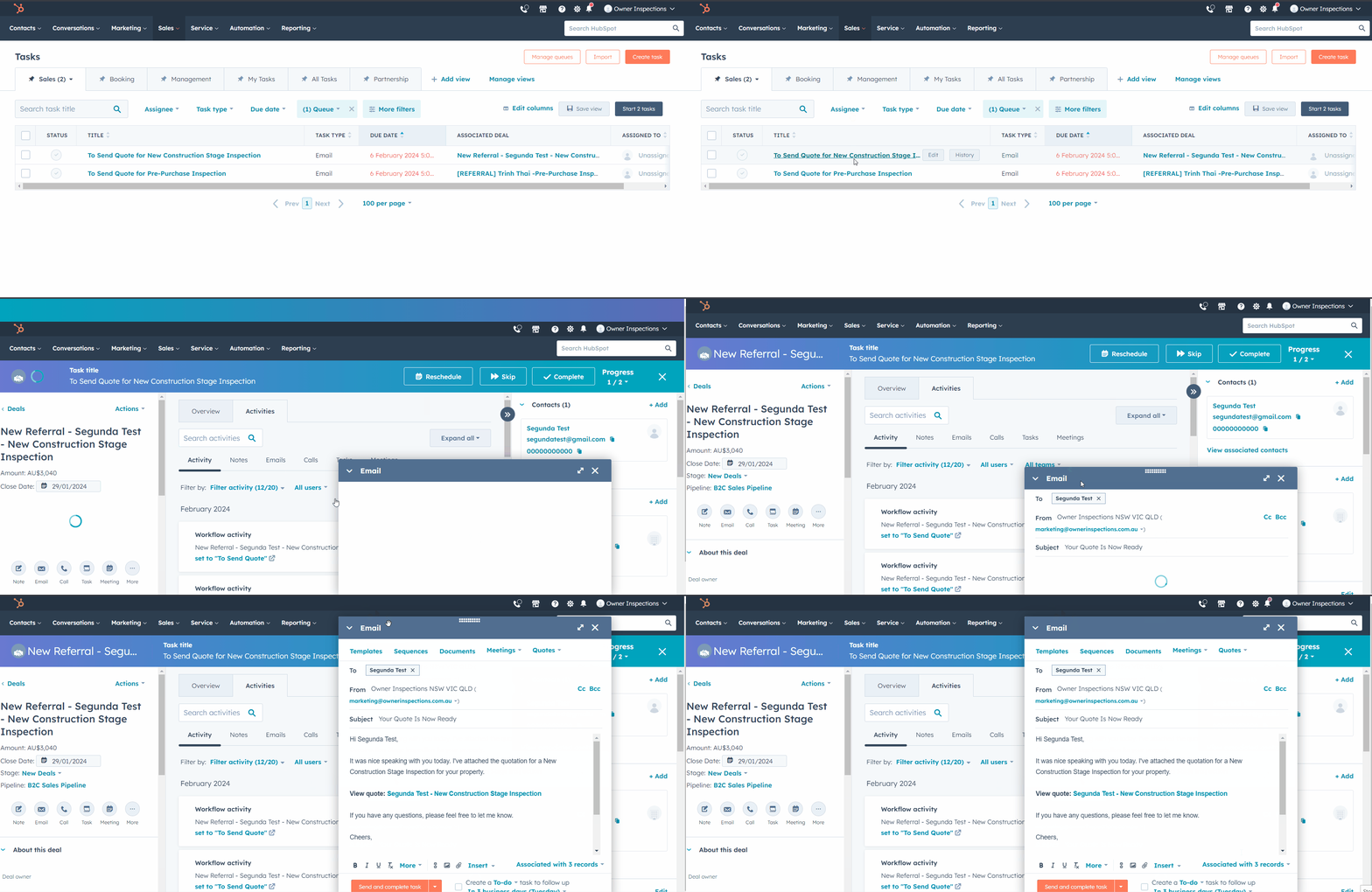
If the task is a call task, the call tab will also automatically open up. If the task is an email task, the email tab will also automatically open up.
Ways contacts get into our system
A new contact gets created when they:
- Fill out a HubSpot form
- Calls a HubSpot phone number
- Gets manually added
When a contact submits a form, it automatically gets added to the system.
When a contact calls a HubSpot phone number, it will also get automatically added to the system.
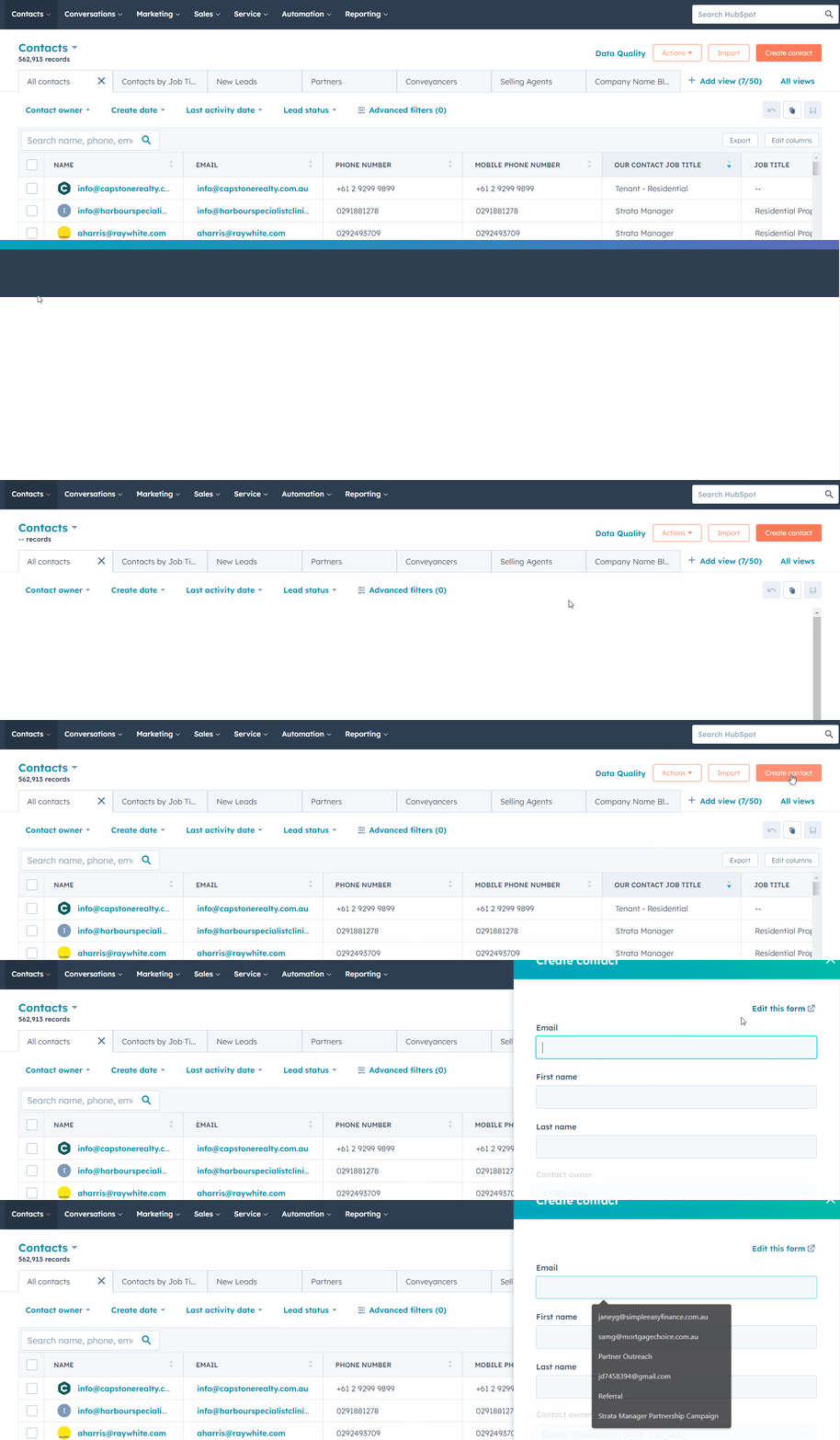
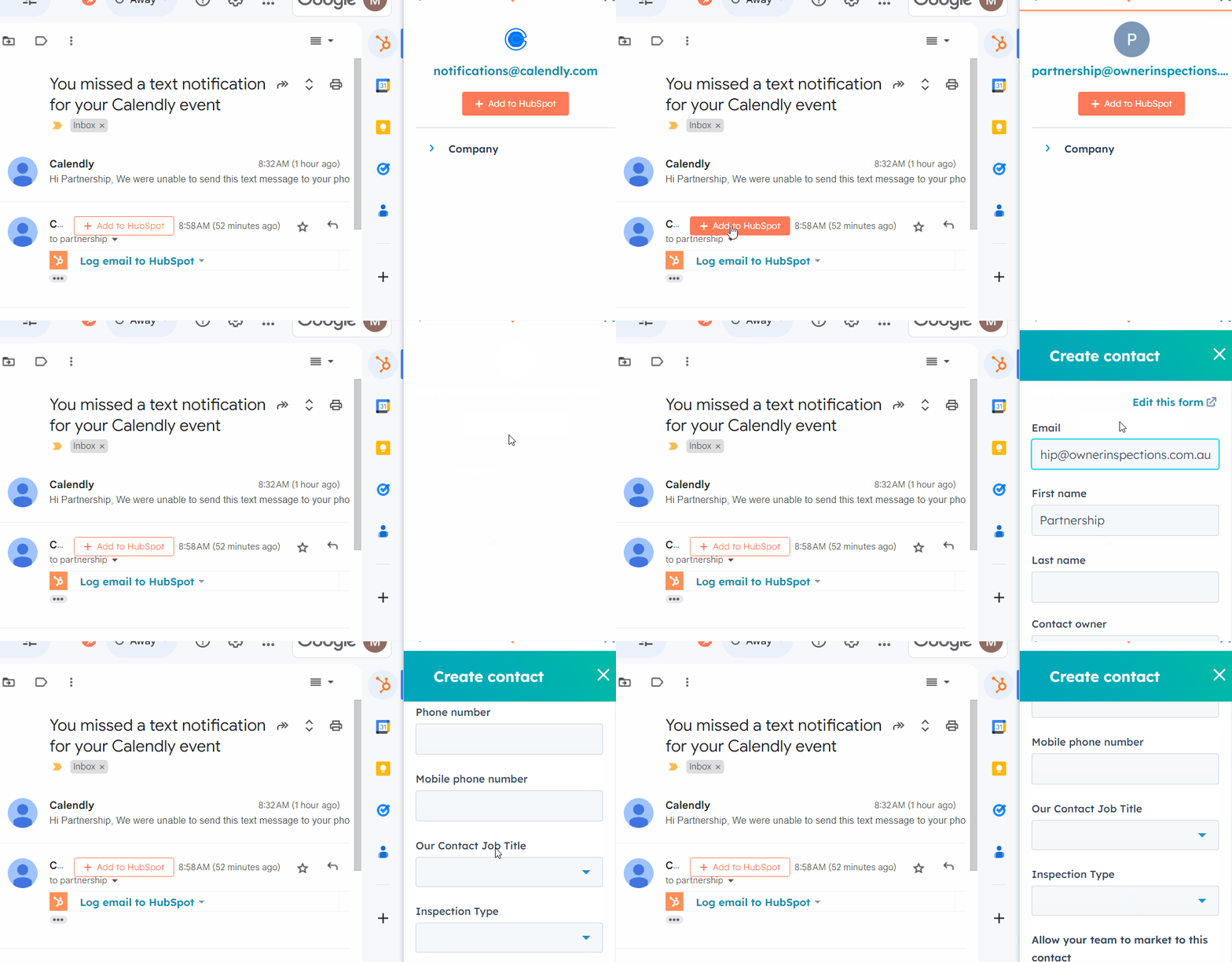
When a contact emails us or calls a different phone number, we can add them to HubSpot manually.
To add a contact manually, click Contacts > Create a Contact and fill out the form.
To add a contact via the email they sent, click +Add to HubSpot and proceed with filling out the form.
What happens when a user submits a “quote” form?
- A new contact gets created on HubSpot
- A new deal gets created as well and added to the B2C pipeline under “New Deals”
- The deal status is automatically set to “To Call” or “To Send Quote”
- To Call means that additional info is needed and the new contact needs to be called by our sales team asap to qualify them
- Go to
- To Send Quote means that the new contact submitted full information and can be qualified without a call. A quote can be made immediately. Currently, this is only available for contacts who request pre-purchase or construction inspections
- To Call means that additional info is needed and the new contact needs to be called by our sales team asap to qualify them
More on deal status in the next article.