
Notes: Currently, all of our website leads get recorded to Monday, but we'll be transitioning to HubSpot soon. This means that our website forms will become HubSpot forms.
- Each service page will have a separate form specific to that service
- All generic pages (homepage, contact page, etc) will have a generic form
- All forms will have a follow up email asking for additional info via another form
- When that follow up form gets submitted, the contact’s deal gets updated accordingly
What Happens when a new contact submits a form?
- A new contact gets created on HubSpot
- A new deal gets created as well and added to the B2C pipeline under “New Deals”
- The deal status is automatically set to “To Call” or “To Send Quote”
- To Call means that additional info is needed and the new contact needs to be called by our sales team asap to qualify them
- Go to
- To Send Quote means that the new contact submitted full information and can be qualified without a call. A quote can be made immediately. Currently, this is only available for contacts who request pre-purchase or construction inspections

- To Call means that additional info is needed and the new contact needs to be called by our sales team asap to qualify them
When a new deal gets created, that deal gets assigned to a specific sales person. A task is also created and assigned to the same sales staff.
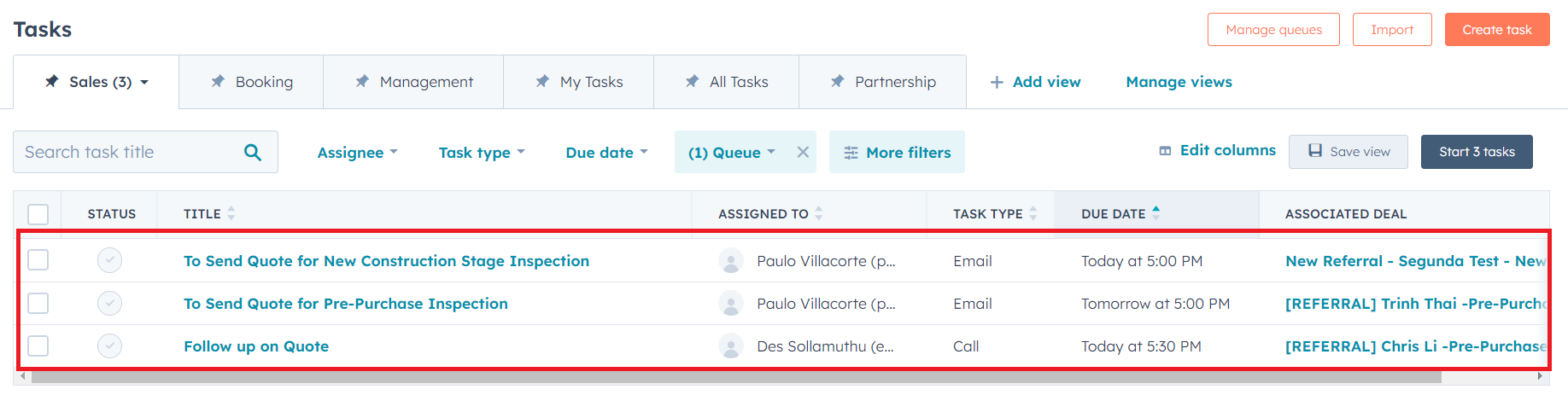
The sales staff will then have to do whatever the deal status calls for; that means, they either have to call the contact or send a quote.
Note that in both cases, the sales staff will need to check if the contact's request is something we can deliver. This would normally mean checking whether the provided postcode is within our service area.
Once we're sure that the contact's request is serviceable, we need to check all other details required to create a quote. If the deal is set to "To Send Quote" already, that usually means we already have all the information we need. However, we'll need to call the contact if the deal status is set to "To Call".
During the call, the sales staff tries to qualify the contact by asking all the required information.
After a qualifying call with a contact, Sales needs to update the deal status depending on how the call went (See After Sending the Quote section).
During the qualifying call
- Sales fills out the necessary information on the deal (if not yet already provided by the client via the form)
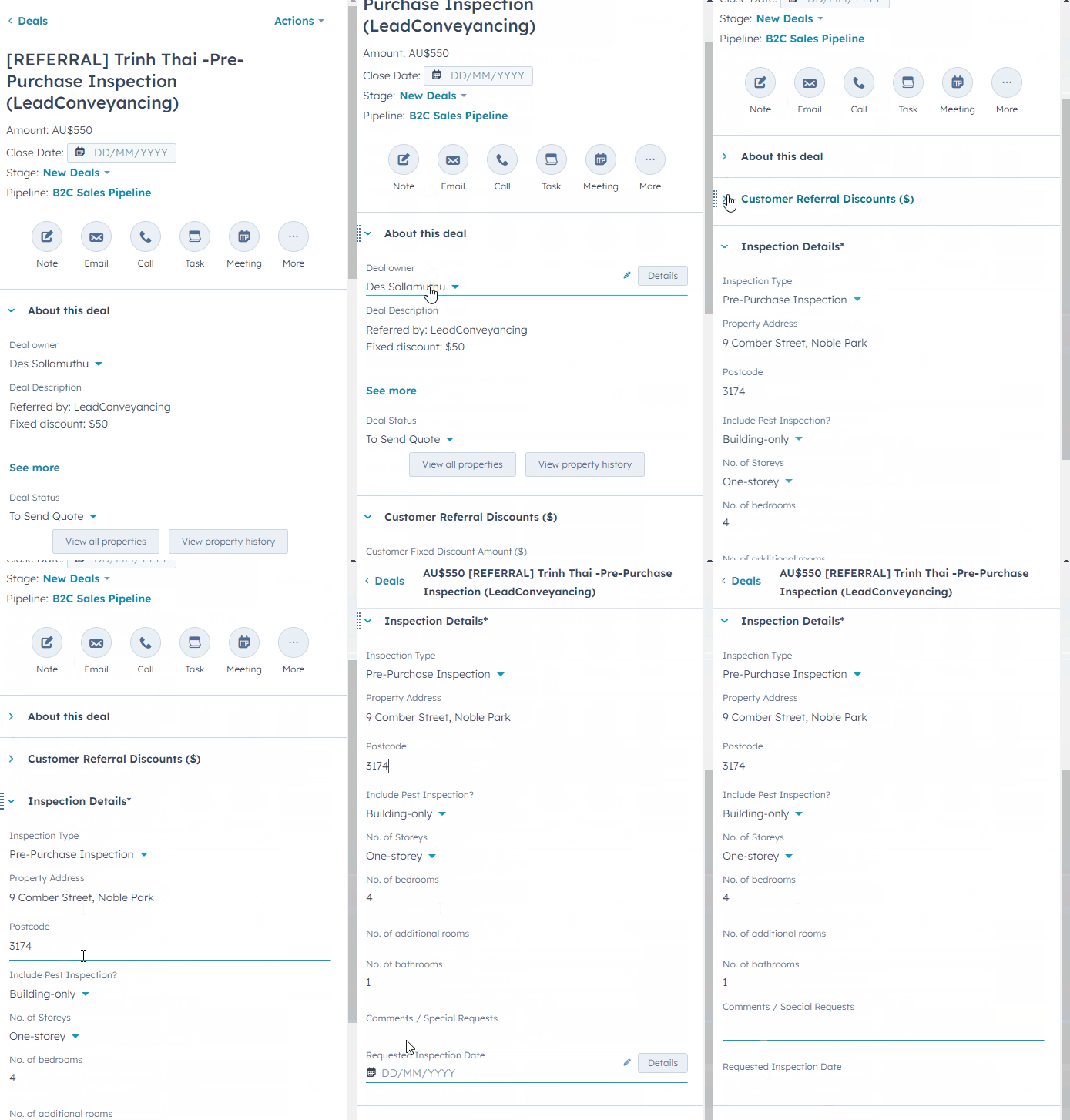
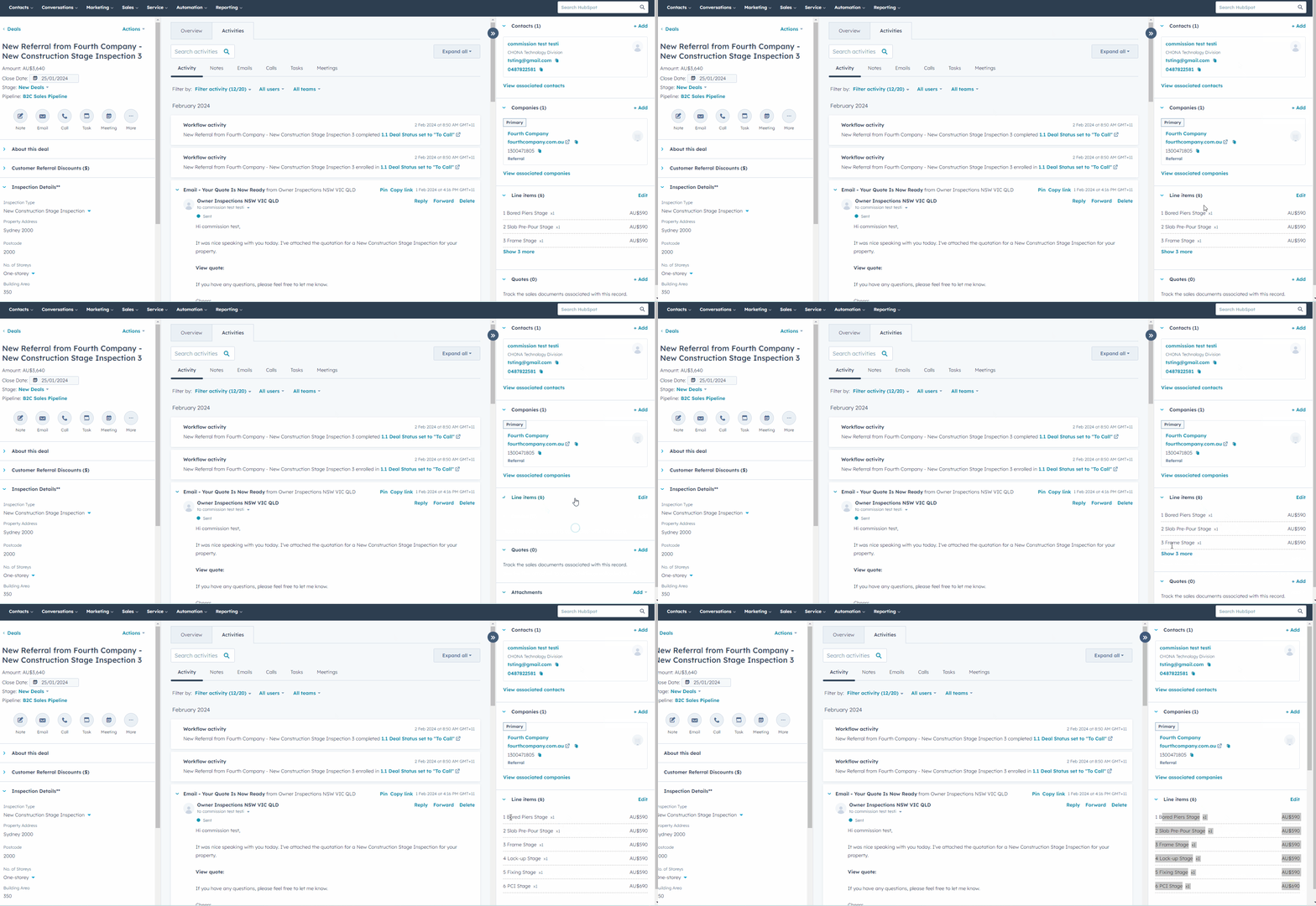
- Sales adds the necessary line items on the deal (updates the deal amount)
- Notes:
- If a contact submits a quote request form for Pre-purchase or Construction, with full info, then the line items will be added automatically
- Sales will still need to check that the line items are in accordance to the client’s requested service and update it manually if necessary
- Notes:
- Sales creates a quote using the appropriate template and publishes it
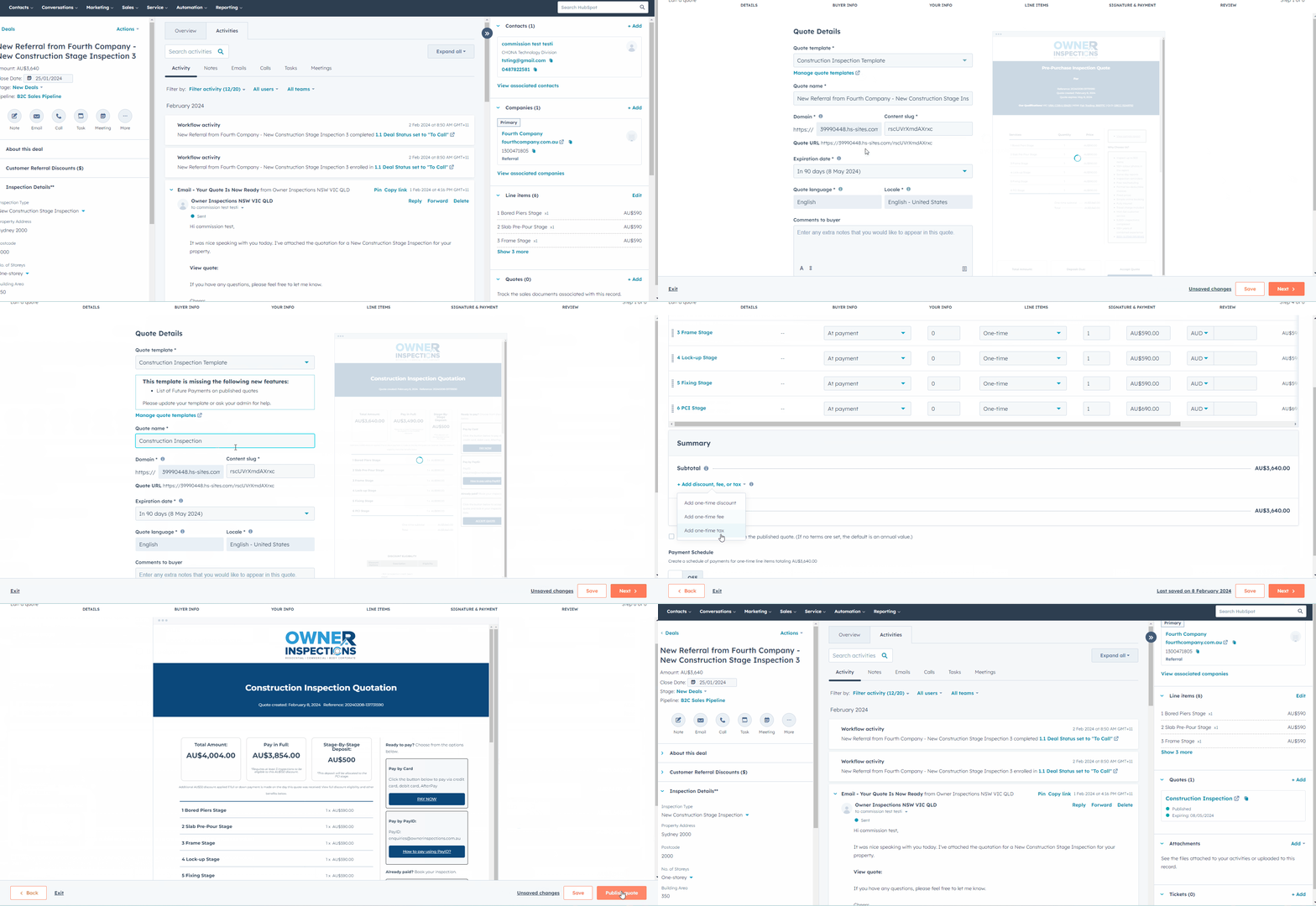
- Sales then sends an email to the customer using the “Send Quote” template.
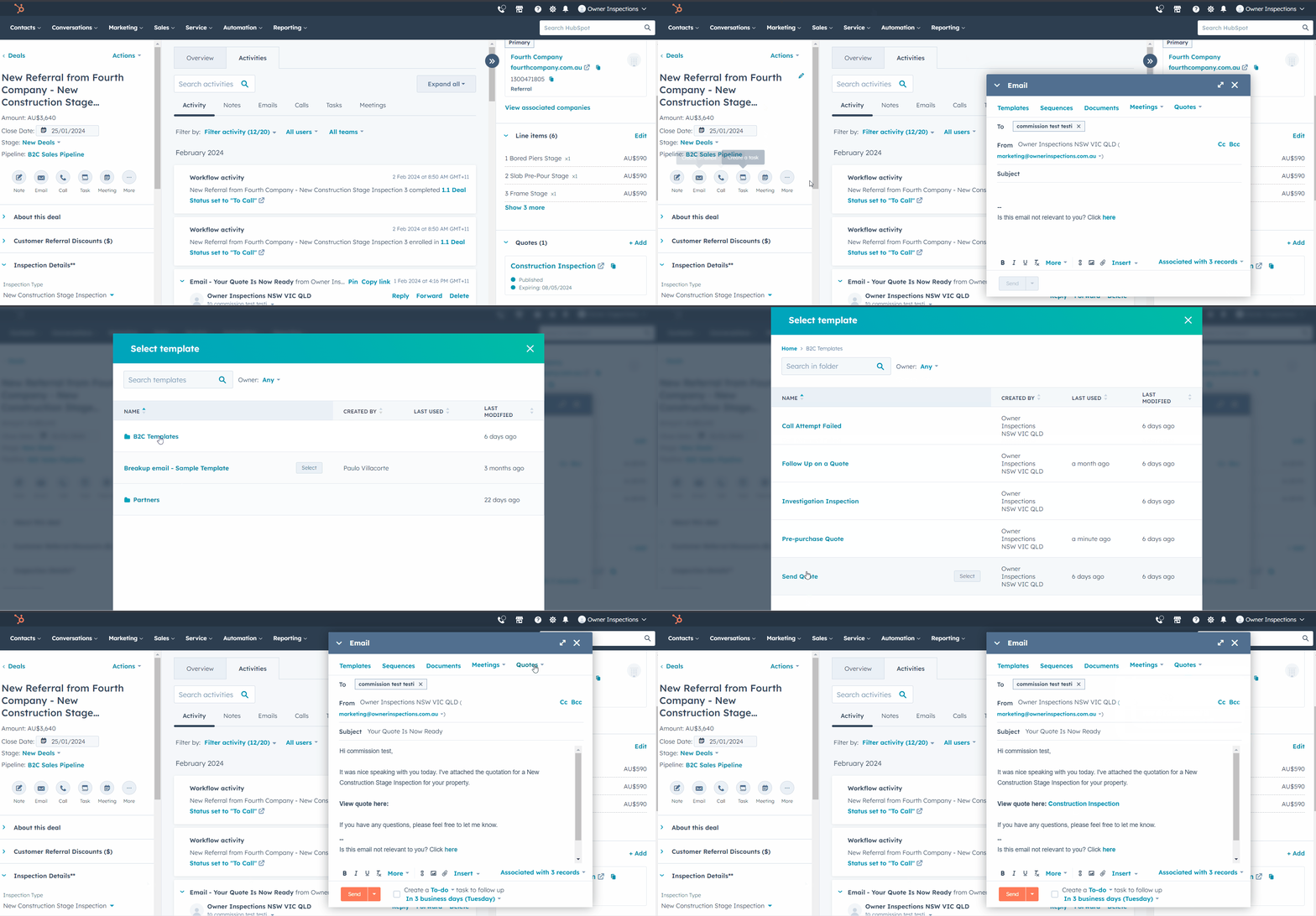
- The deal automatically moves to the “Quote Sent” lane
- A new task gets created reminding Sales to call the client for a follow up
- Sales can send a follow up email using the template “Follow up on Quote “
After Sending the Quote
- When a quote is sent, Sales need to make follow up calls.
- Every time they call, they need to update the deal status
- If call was not answered:
- 1st Attempt Failed
- 2nd Attempt Failed
- 3rd Attempt Failed
- Declined or not qualified:
- Hired Someone Else
- Not Interested
- Out of Scope
- Suspicious/Fake Client
- Wrong Contact Details
- If call was not answered:
- Each of these triggers an automated action:
- 1st Attempt Failed - creates a task to remind to try calling again one hour later
- 2nd Attempt Failed - creates a task to remind to try calling again tomorrow
- 3rd Attempt Failed - creates a task to remind to try calling again in 3 days
- All of the above will also send an automated email that notifies contact that we tried to call them
- Hired Someone Else - moves deal to closed lost
- Not Interested - moves deal to closed lost
- Out of Scope - moves deal to closed lost
- Suspicious/ Fake Client - moves deal to closed lost
- Wrong contact details - moves deal to closed lost
When a customer pays
- Customers can pay via a specified Accept Quote page where they submit a proof of payment
- Once they submit this form, the deal gets moved to “Initial Payment Received” and a new task gets created and assigned to the Booking team
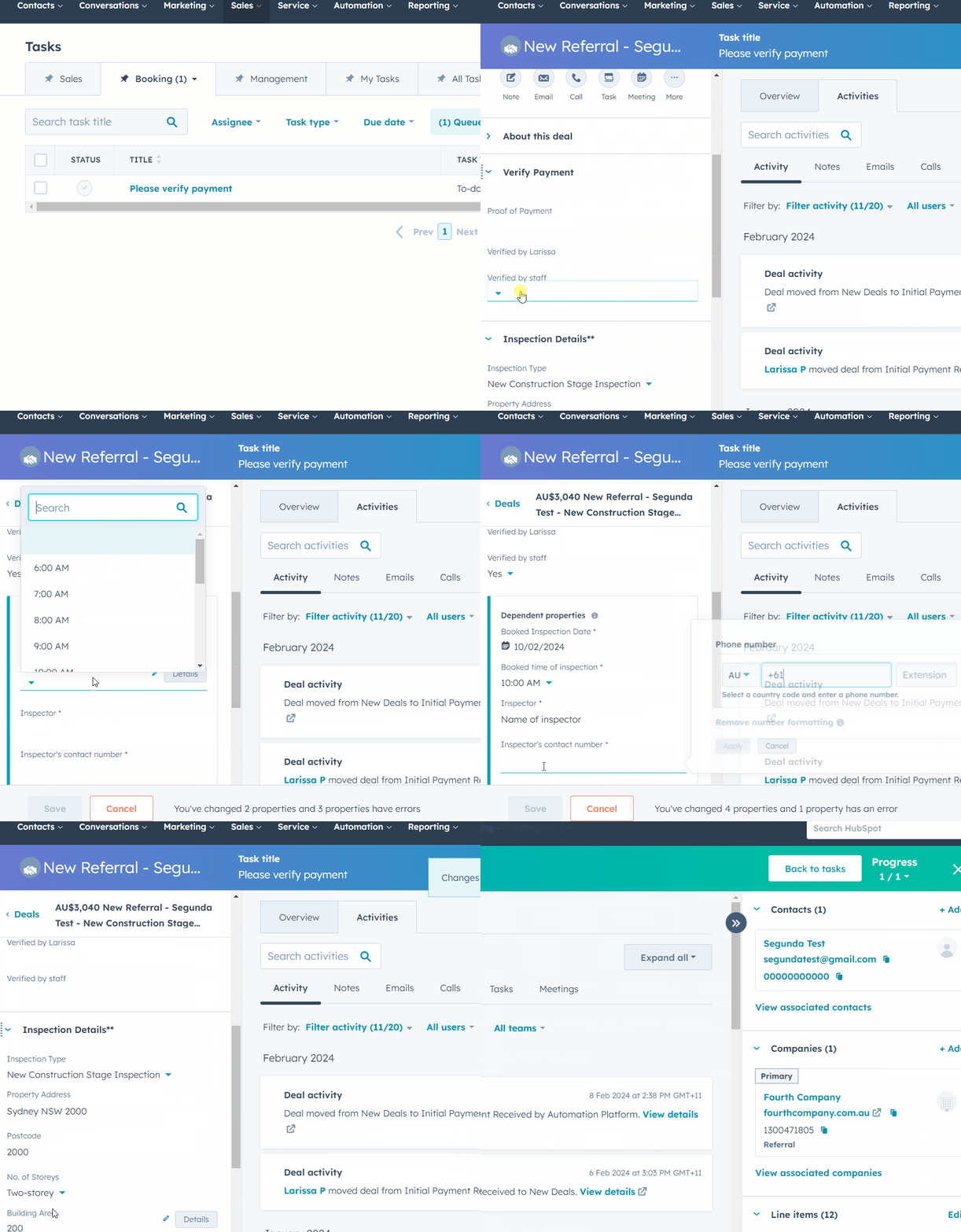
- The Booking team verifies the payment:
- They check the email notification (if from one of the big banks), and if verified, they set the “Payment Verified?” property to yes.
- Once they’ve set it to yes, they can proceed with booking the inspection
- If they can’t find the notification email or if the payment is not from one of the big banks, they need to set “Payment Verified?” to no.
- This will create a task assigned to Larissa so that she can verify the payment herself
- Once Larissa verifies the payment, she sets it to yes and the booking team gets notified that they can proceed with booking.
- If Larissa can't verify the payment, she leaves it to “No” and add a comment on the deal to provide further instructions
- A new task gets created for the Booking team and they carry out Larissa's instructions
- They check the email notification (if from one of the big banks), and if verified, they set the “Payment Verified?” property to yes.
Booking an Inspection
Booking an inspection is done on Spectora, but the notification that a new booking needs to be created comes in through HubSpot based on the deal status.
Once the booking team books the notification, they need to go back to HubSpot and proceed with updating the payment confirmation.
Once they mark the payment verification property with a "Yes", they'll be required to put in the date the inspection was booked on Spectora, the time, the inspector booked, and the phone number of the inspector.
Booked Inspections
When an inspection is already booked on Spectora and the HubSpot deal has been updated with the booking details, the deal moves automatically to the "Inspection Booked" column. The deal will stay there until one day after the date indicated in the "Booked time of inspection" at which point the deal moves to the "Inspection Complete" column.
Whenever a call comes in related to a specific booked inspection, we can find the corresponding deal in either of these columns.
Cancelled Bookings
When a booked inspection needs to be cancelled, find the deal from the B2C pipeline and find out whether a refund is necessary.
For Booking team, you can set the deal status to "Refund Requested" and tell the customer that someone from the sales team will call them about the cancellation.

The deal will move automatically to "Refund Requested" column and a new task will get created and assigned to Sales.
Sales will then have to call the customer to try and save their business. If unsavable, Sales will gather information and validate why the cancellation is being requested.
- If the reason turns out to be Owner Inspections' fault:
- Specify the issue in the "Details of Reason" box
- This will create a new task for the Booking team that confirms we can proceed with cancelling with no cancellation fee.
- If the reason is a customer-side issue:
- Specify details of the issue
- Verify with the customer that a cancellation fee will be charged
- Indicate on HubSpot whether the customer agreed to this or not during the call
- If the customer demands not to pay the cancellation fee, choose "No" under "Customer agrees to cancellation fee?" and add your notes about why this is being escalated.
- This will create a task assigned to Larissa. Larissa will then resolve the issue and approve the refund as she sees fit.
- When the refund is approved by Larissa, she will include instructions on how to proceed.
- A new task will be created including Larissa's instructions, and Ashley will carry out these instructions.